Match a target, then apply a policy
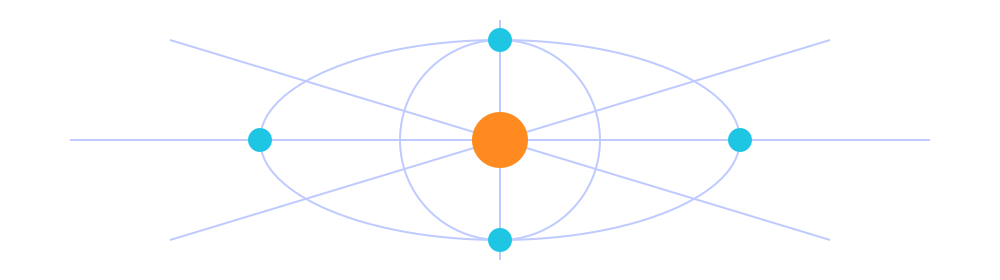
Rule-based routing sends different destinations to different policies. In Config, check which configuration is active, then review the entries under [Rule]. Rules are generally evaluated from top to bottom: put narrower conditions first, broader ones later, and use FINAL as the fallback. DOMAIN-SUFFIX matches a domain and its subdomains; IP-CIDR matches an IP range. PROXY, DIRECT, and REJECT send traffic through a proxy, connect directly, or block it. After making changes, check which rule matched the actual request—whether a page loads is not enough to confirm routing.
[Rule]
DOMAIN-SUFFIX,example.com,PROXY
IP-CIDR,192.168.0.0/16,DIRECT
FINAL,DIRECT
On Demand and connection triggers
On Demand starts connections when system-defined conditions are met; it does not mean the same network state is maintained at all times. Find the relevant options in Settings. Before enabling them, confirm that manual connections work, then review the triggers in light of how you use Wi-Fi and cellular data. If a connection reappears after you turn it off manually, check On Demand before removing the configuration. The system VPN status only reflects the connection configuration; it does not prove that a server or destination is reachable. Check battery usage in the system’s battery records as well.
Manage existing details with Subscribe
A subscription provides a way to import and update your existing server details in one place. Check the link with your service provider, then add it using the Subscribe type in Add Server or another import option provided by the app. After saving, confirm that the expected entries appear. If an update fails, check the link, its validity, and your network connection. Updates may change entry names or server parameters, so keep a copy of the original details before editing. Subscription links may contain credentials; do not include the full link, QR code, or account details in public screenshots when troubleshooting.
Config and Global Routing
Config manages configuration files; Global Routing selects how traffic is handled. With Config selected, traffic follows the rules in the active configuration. Proxy sends eligible requests through the selected proxy, while Direct connects without one. The server list and configuration file are separate, so confirm the active configuration after importing a server. Save a recoverable copy before editing, and change one related setting at a time. If you use iCloud sync, check its status in both the app and system iCloud settings; do not rely on sync as your only backup.
[General]
bypass-system = true
dns-server = system
Match the protocol to the server details
Shadowsocks, VMess, and Trojan are different protocol types. When adding a server, match the type to your existing server details. In Add Server, choose Type, then enter Host, Port, and the required authentication fields. Check TLS, transport, and server name settings where applicable. Choosing the same protocol does not make other parameters interchangeable, and a latency test result does not confirm successful authentication. Start with the complete import details, then check key fields. Avoid changing several parameters at once when troubleshooting a failed connection.
Distinguish tests, traffic, and diagnostics
Connectivity Test checks the server’s test response, Data shows traffic, and Diagnostics in Settings provides further troubleshooting options. Each answers a different question: a test response does not guarantee that a target request will succeed, and total traffic does not confirm that a rule is correct. If something goes wrong, note your network, selected server, and Global Routing mode first. Reproduce one specific request, then use the connection records to check DNS resolution, authentication, and routing. When describing the issue to someone else, share only the necessary details and hide server credentials and subscription links.